API Keys
An overview of User API Keys in the Byos Management Console
Overview
User API keys can be used for programmatic interaction with the Byos Management Console.
How to Generate an API Key
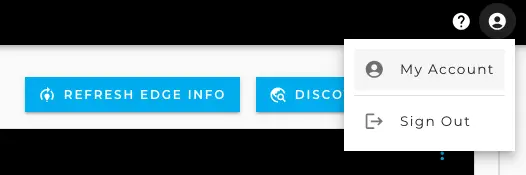
- Click on the User icon in the top right and select “My Account”
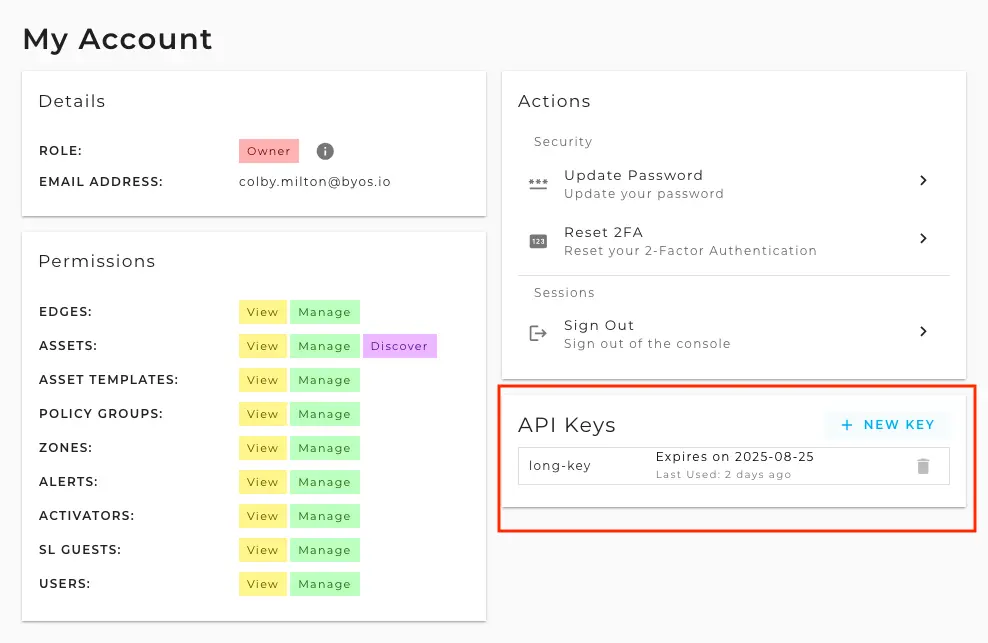
- On the My Account Page, Click “New Key” in the API Keys section
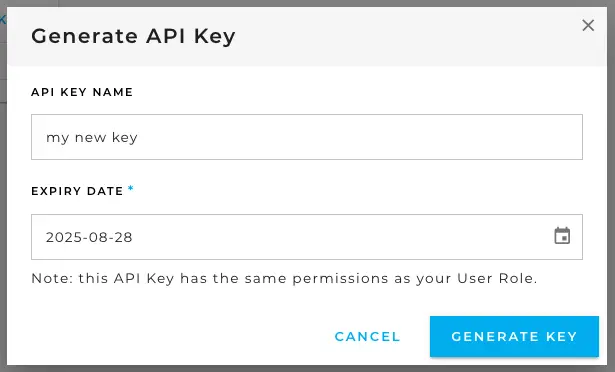
- Fill in the dialog and click “Generate Key”
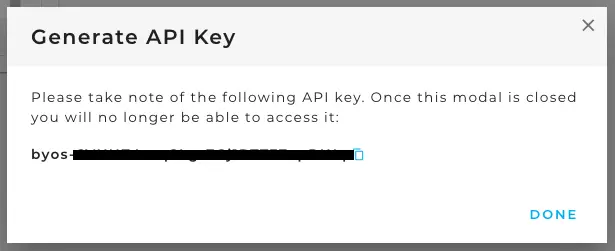
- Copy and save the generated key. You will never be shown this key again.
API endpoints
activators
GET/v2/activators- Get all the activators for a customerGET/v2/activators/{activatorId}- Get the activator by IDPATCH/v2/activators/{activatorId}- Update the activator by IDDELETE/v2/activators/{activatorId}- Delete the Activator by ID
activation_group
GET/v2/activationGroups- Get all activation groups for customerGET/v2/activationGroups/{activationGroupId}- Gets requested activation group details for customerPOST/v2/activationGroupsPATCH/v2/activationGroups/{activationGroupId}- Patch Customer Activation GroupDELETE/v2/activationGroups/{activationGroupId}- Delete Customer Activation Group
alerts
GET/v2/alert-categories- get alert categoriesGET/v2/alert-codes- Get alert codesGET/v2/alerts- Get Edge alertsGET/v2/alerts/meta- Get meta datat of the edge alerts query
Alert Filtering
Filtering the /alerts Endpoint
The /alerts endpoint supports advanced filtering via the filter query parameter. Each filter is a string in the following format:
filter=<field>·<operator>·<value>
- Use a middle dot (
·, Unicode U+00B7) as the separator between field, operator, and value. - Multiple filters can be added by repeating the
filterparameter in the query string. - Values must be URL-encoded.
Supported Operators
The following operators are supported (see OperatorType):
is— exact matchisAnyOf— match any value in a listnot— not equalcontains— substring matchisNotEmpty— field is not empty>— greater than<— less thanisBefore— date/time beforeisAfter— date/time afterisOnOrBefore— date/time on or beforeisOnOrAfter— date/time on or aftercontainsAny— contains any value in a list
Currently Available Alert Filters
- id
- categoryId
- alertCode
- edgeId
- timestamp
- message
- data
- serial
- edgeName
Value Formatting
- Strings: Wrap in double quotes, e.g.
"some string". - Numbers: Use as-is, e.g.
5. - Arrays: Use JSON array syntax, e.g.
["val1","val2"], and URL-encode special characters (e.g.[becomes%5B,,becomes%2C). - Date/Time: Use the format
YYYY-MM-DD HH:mm(e.g.2025-05-13 16:11). URL-encode the colon (:) as%3Aand the space as%20if needed. Do not wrap date/time values in quotes.
Examples
Filter alerts before a specific timestamp:
/alerts?filter=timestamp·isBefore·2025-05-13%2016%3A11Filter by timestamp and category:
/alerts?filter=timestamp·isAfter·2025-05-13%2016%3A11&filter=categoryId·is·5Filter by multiple edge IDs:
/alerts?filter=edgeId·isAnyOf·["9a90af71-251e-11f0-a7be-3ec870f66d56"%2C"9a90ac8f-251e-11f0-a7be-3ec870f66d56"%2C"9a90ac6f-251e-11f0-a7be-3ec870f66d56"]
Tips
- Always URL-encode the filter values, especially for special characters like quotes, brackets, spaces, and colons.
- You can combine multiple filters by adding multiple
filterparameters to the query string.
assets
GET/v2/assets- Gets assets from the most recent discovery scanPOST/v2/assets- Add a manual AssetPOST/v2/assets/from-template- Add a manual Asset using a templatePUT/v2/asset/scan- Run a discovery scan for AssetsPATCH/v2/assets/{assetId}- Add resources or update metadata for AssetsDELETE/v2/assets/{assetId}- Delete an AssetPATCH/v2/assets/{assetId}/{resourceId}- modify resource information for an AssetDELETE/v2/assets/{assetId}/{resourceId}- Delete a resource from an Asset
asset-templates
GET/v2/asset-templates- Gets Asset templatesPOST/v2/asset-templates- Add a new Asset templatePATCH/v2/asset-templates/{templateId}- Modify an asset templateDELETE/v2/asset-templates/{templateId}- Delete an Asset template
api-keys
GET/v2/users/{userUuid}/api-keys- Gets all of the specified users API keysDELETE/v2/users/{userUuid}/api-keys/{keyUuid}- Deletes the specified API key from the specified userGET/v2/users/current/api-keys- Gets all of the current user’s API keysPOST/v2/users/current/api-keys- Generate an API key for the current userDELETE/v2/users/current/api-keys/{keyUuid}- Delete one of the current user’s API keys
edges
GET/v2/edges- Gets all Edges registered to the customerPATCH/v2/edges/{edgeId}- Update the Edge’s detailsGET/v2/edges/{edgeId}/recovery- Gets the manual factory reset token for the specified EdgePATCH/v2/edges/{edgeId}/deactivate- release the license for the specified EdgePATCH/v2/edges/{edgeId}/reboot- reboot the specified Edge (for online Edges only)PUT/v2/edges/refresh-system-info- Refresh the Edge’s system info
guests
GET/v2/sl-guests- Get all SL GuestsPOST/v2/sl-guests/{guestID}- Create an SL GuestPATCH/v2/sl-guests/{guestID}- Modify an SL GuestDELETE/v2/sl-guests/{guestID}- Delete an SL GuestPUT/v2/sl-guests/{guestID}/send-ovpn- Resend the SL Guest their OVPN file.
policies
GET/v2/policies- Get all policiesPOST/v2/policies- Create a policyGET/v2/policies/{policyId}- Get a policy’s detailsPATCH/v2/policies/{policyId}- Modify a policyDELETE/v2/policies/{policyId}- Delete a policyGET/v2/policies/network/validate- Takes a policy’s microsegment network structure and confirms the IP do not clash with other zones
users
GET/v2/users- Get all UsersPOST/v2/users- Create a new UserPATCH/v2/users/{userUuid}- Modify a UserDELETE/v2/users/{userUuid}- Delete a UserPUT/v2/users/{userUuid}/reset-2fa- Reset User’s 2FAPUT/v2/users/{userUuid}/reset-password- Reset User’s passwordGET/v2/users/roles- Get all Users rolesGET/v2/users/current- Get info about the current UserPATCH/v2/users/current- Modify current User’s detailsPUT/v2/users/current/reset-2fa- Reset Current User’s 2FAPUT/v2/users/current/reset-2fa- Reset Current User’s password
zones
GET/v2/zones- Get all zonesPOST/v2/zones- Create a zoneGET/v2/zones/network/validate- Takes a Zone’s network structure and confirms the IP do not clash with other zonesGET/v2/zones/{zoneId}- Get a zone’s detailsPATCH/v2/zones/{zoneId}- Modify a zoneDELETE/v2/zones/{zoneId}- Delete a Zone
Using API Keys in Postman
API keys can be used with any API client to interact and test the APIs. Below are some example interactions using Postman.
Step 1
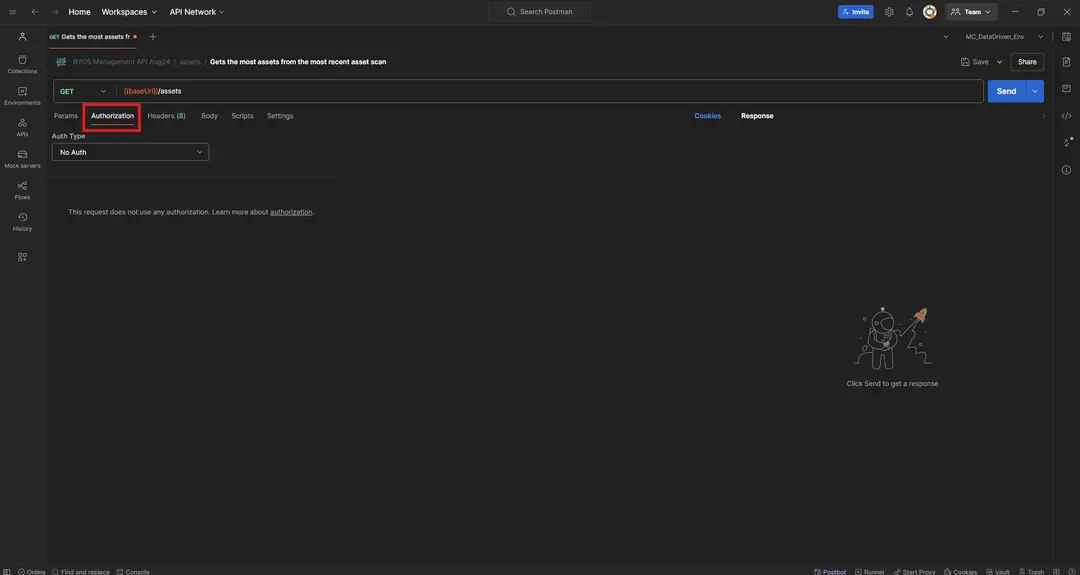
Copy the generated API key and navigate to the Authorization tab within the request
Step 2
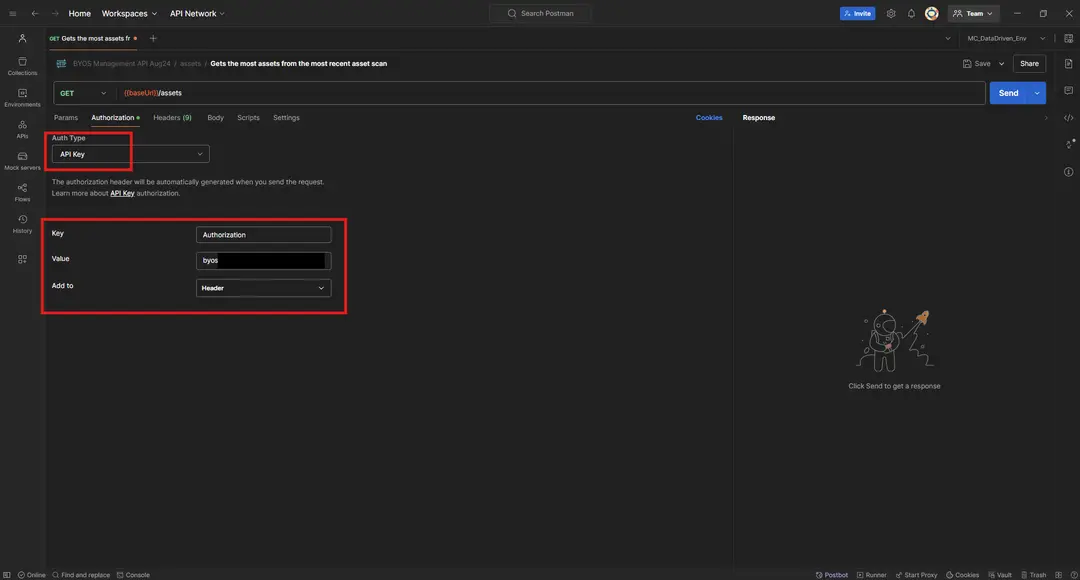
In the field Auth Type, make the following selections:
- Select "API Key" from the drop-down list.
- Enter "Authorization" in the Key field.
- Input the generated API key in the Value field.
- Select "Header" from the drop-down list in the Add to field.
Step 3
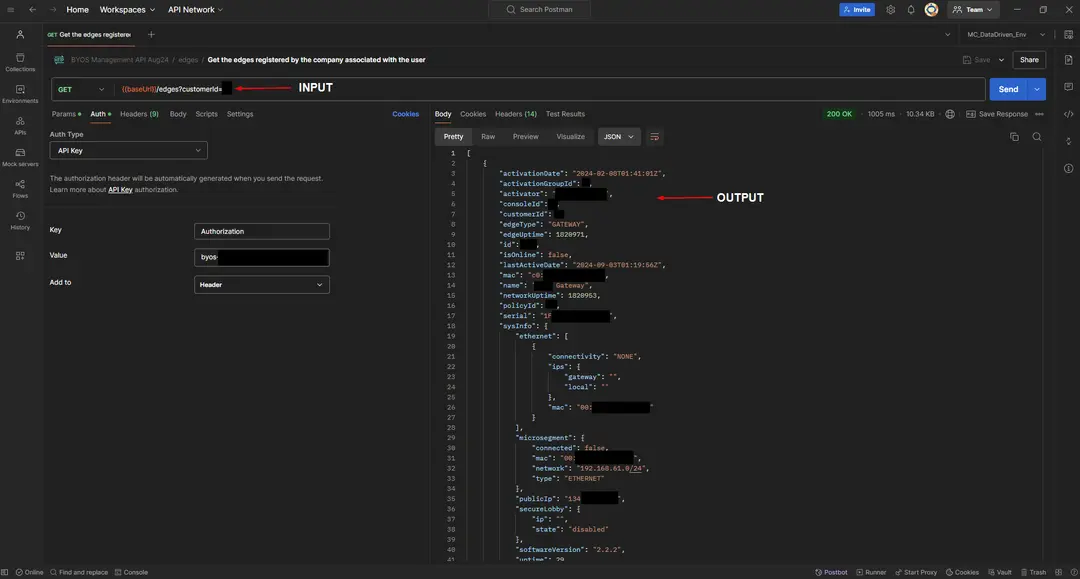
Hit various API EndpointsExamples:
- GET /edges?customerid
- POST /policies