Firewall Rules Overview
How to access and implement Firewall Rules for a Byos Secure Edge device
This section explains how to configure and view Firewall Rules of each Byos Secure Edge in your environment, via the Management Console. Firewall Rules allow for a more granular approach to directing traffic to specific resources in order to more strictly control access to Assets.
Prerequisites
- Minimum software requirements for Edge Firewall Rules, is v3.0.1
- Minimum User role of Admin is required in order to have view and configure Firewall Rules access.
Accessing the Firewall Rules feature
- Login to the Management Console

- In the Network Menu to the left, select Policy Groups
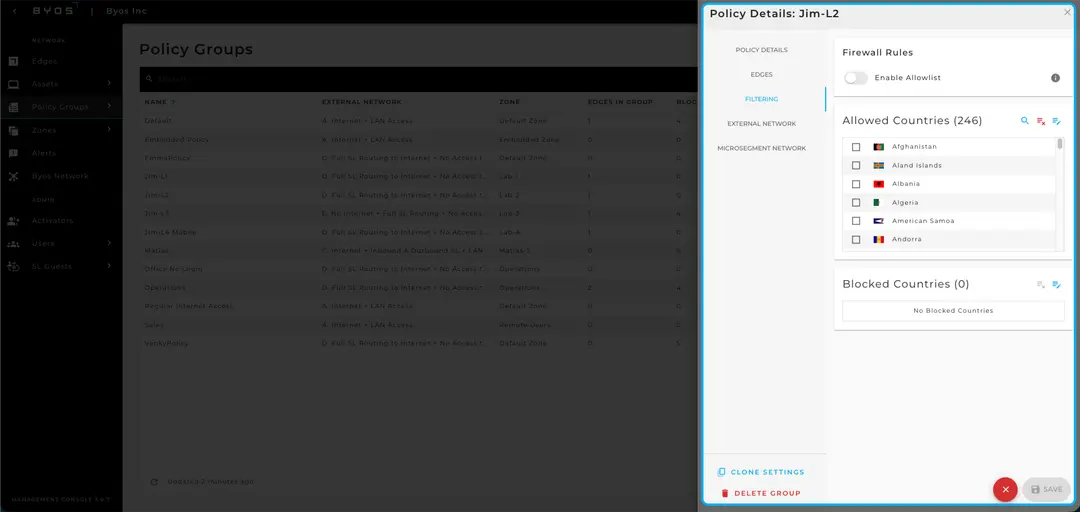
- Choose the appropriate Policy Group from the table and expand the Policy Details by clicking the name of the Policy
- From the Policy Details menu, select Filtering.
Configuring Firewall Rules
- First, click the Enable Allowlist toggle (select Ok when presented with the challenge dialog) to turn the feature on
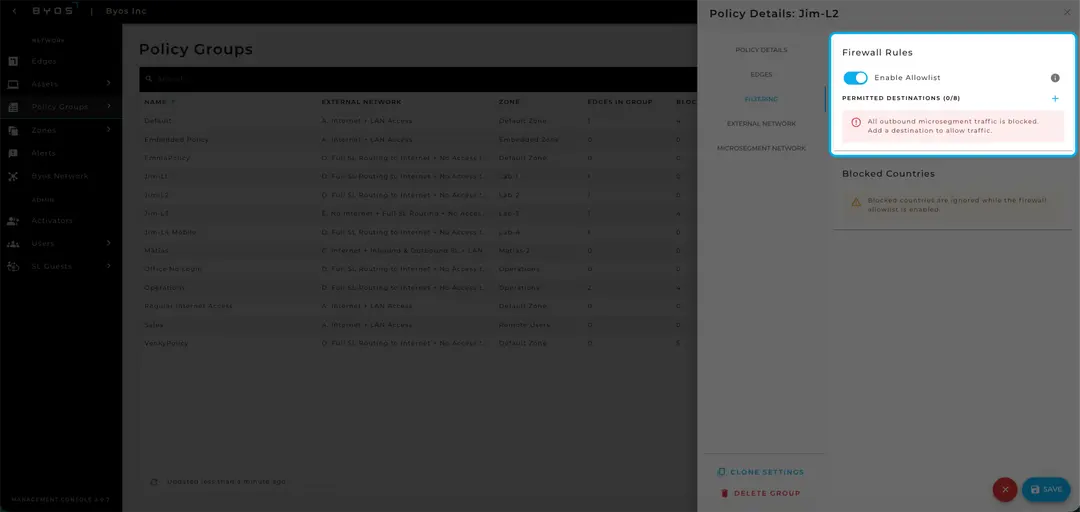
- Select the + Permitted Destinations button to view the Add Allowed Destination menu
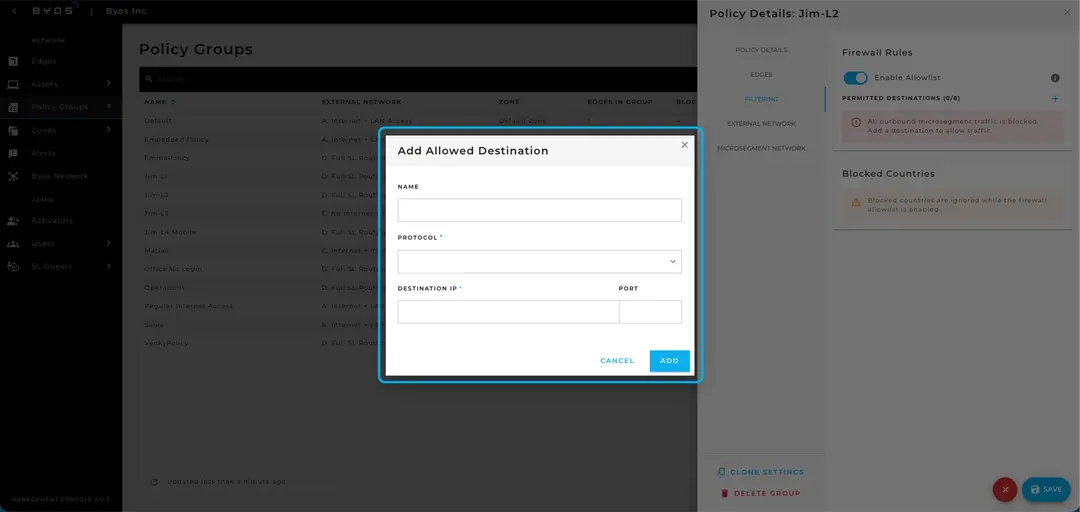
- Choose a Name, Protocol, Destination IP and appropriate Port for each Rule and select Add
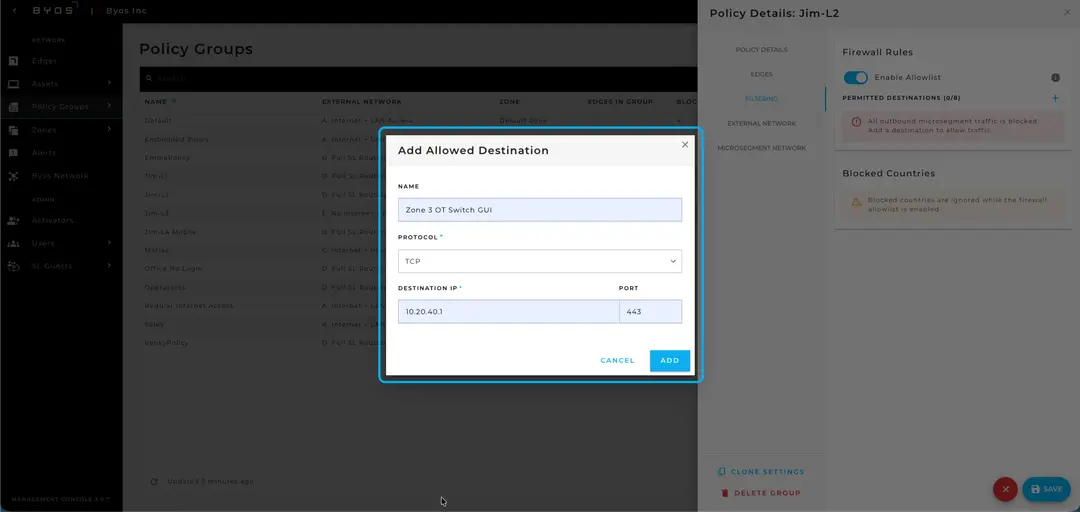
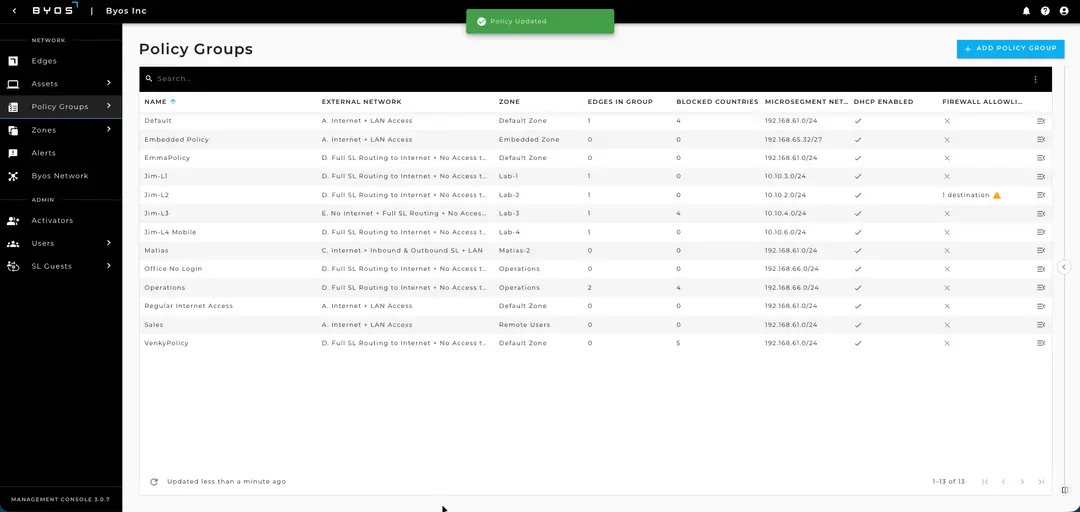
- Once your Firewall Rules are in place, select the Save button on the bottom right of your screen. You should see a Policy Updated indicator if you are successful.
What to expect
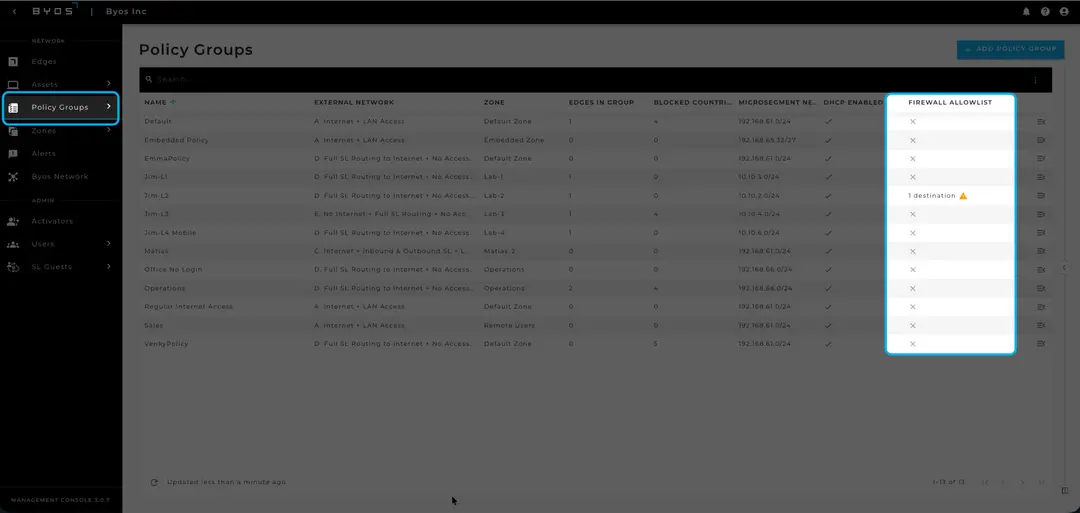
- Once your Firewall Rules are set and saved, you will be redirected back to the Policy Group Table
- Here you will notice the addition of a Firewall Allowlist column
- For each Policy Group with a Firewall Allowlist entry, you will observe an indication of how many rules are in place for that Policy Group
When to contact support
If you cannot access the local Edge interface, Policy Group menu, Filtering, or the Firewall Allowlist, and you’ve contacted an Account Owner for the Management Console to verify you have the proper Role Based Access Control, collect as much detail as possible about the issue (Edge model, firmware version, and a short description of the problem) and contact Byos Support through your standard support channel. When requested, attach the locally collected log file so that Support can assist with further diagnosis.