Edge Logs
How to access, collect and export logs from my Byos Secure Edge device
Overview
This section explains how to view, collect and share logs locally from a Byos Secure Edge device for troubleshooting, support, and audit purposes. You can view, filter and export logs directly from the device, without needing to use the Management Console
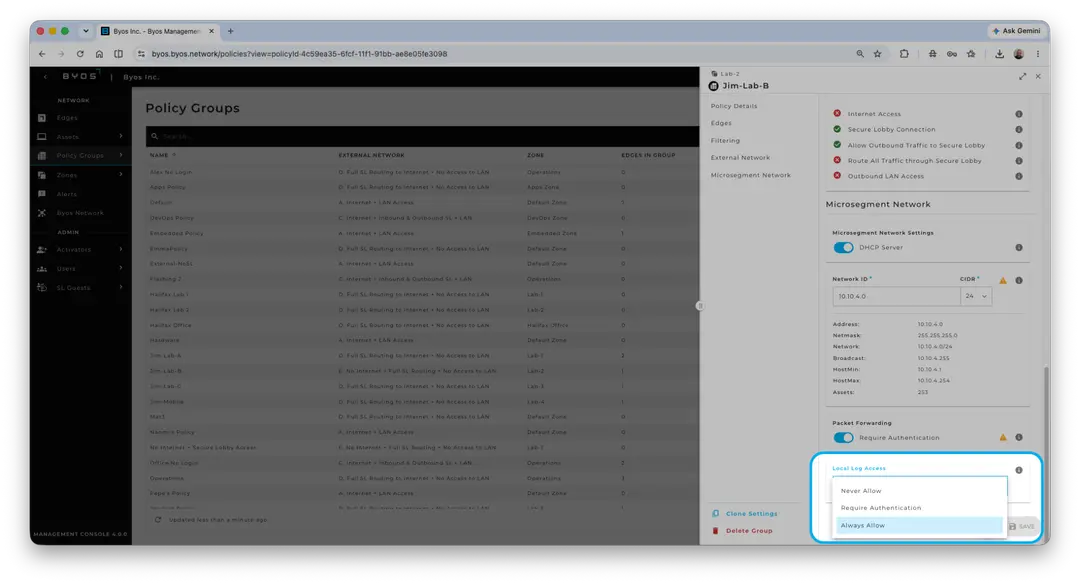
(*While the Management Console is not needed to collect, view or share logs from an Edge, the Policy Group governing a specific Edge, must allow for the collection of logs. Local Log Access offers 3 options; Never Allow, Require Authentication or Always Allow.)
Prerequisites
- Minimum software requirements for local Edge logs, is v3.0.2
- Local (within the microsegment) access to the Edge’s management interface (WebUX via local IP address)
- Edge is powered on and in a healthy or reachable state.
- A workstation with a web browser and sufficient local storage to save the exported log file.
- Local Log Access permission, granted through the Policy Group governing the Secure Edge device.
Accessing the local Edge interface
- Connect your workstation to the Edge, or to an Ethernet switch inside the microsegment.
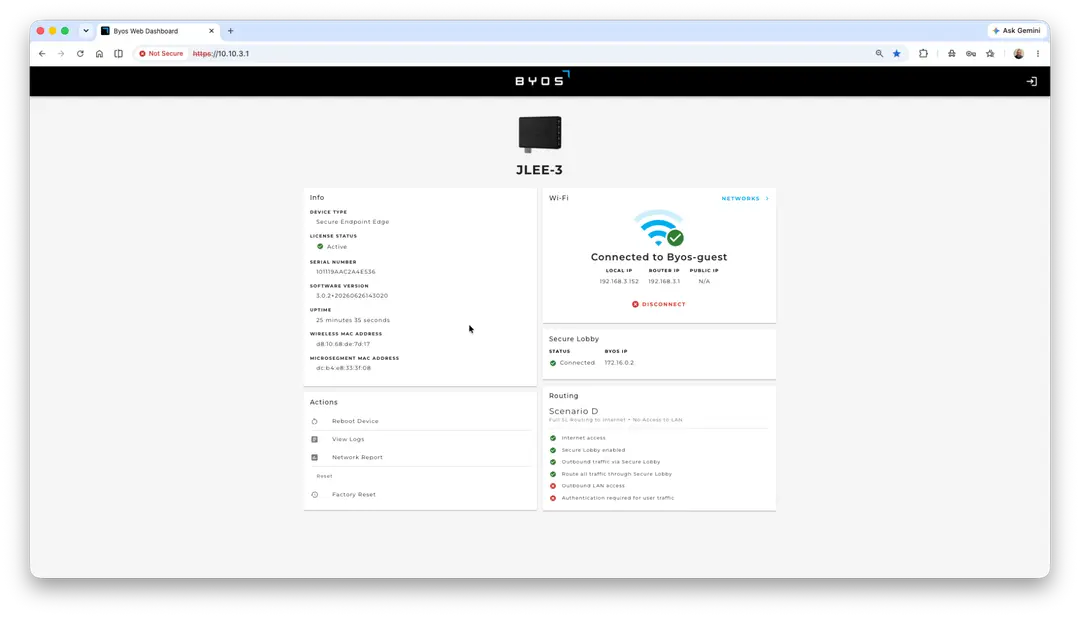
- Launch appropriate browser, and navigate to the local IP address of your Edge device.
Collecting logs locally
- From the Edge dashboard, navigate to the View Logs menu, in the Actions section of the dashboard.
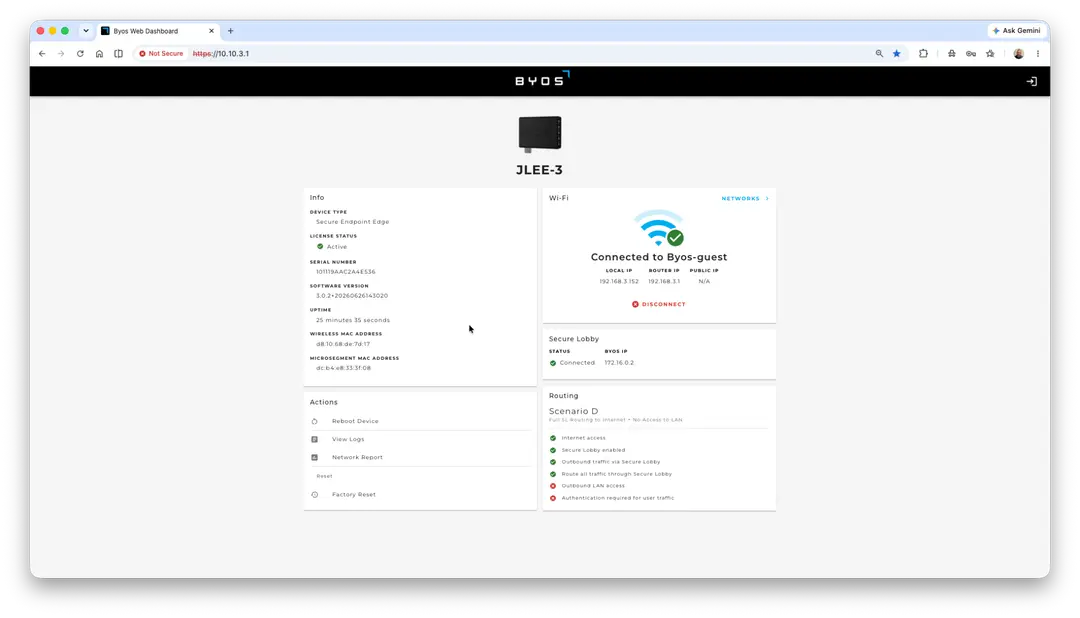
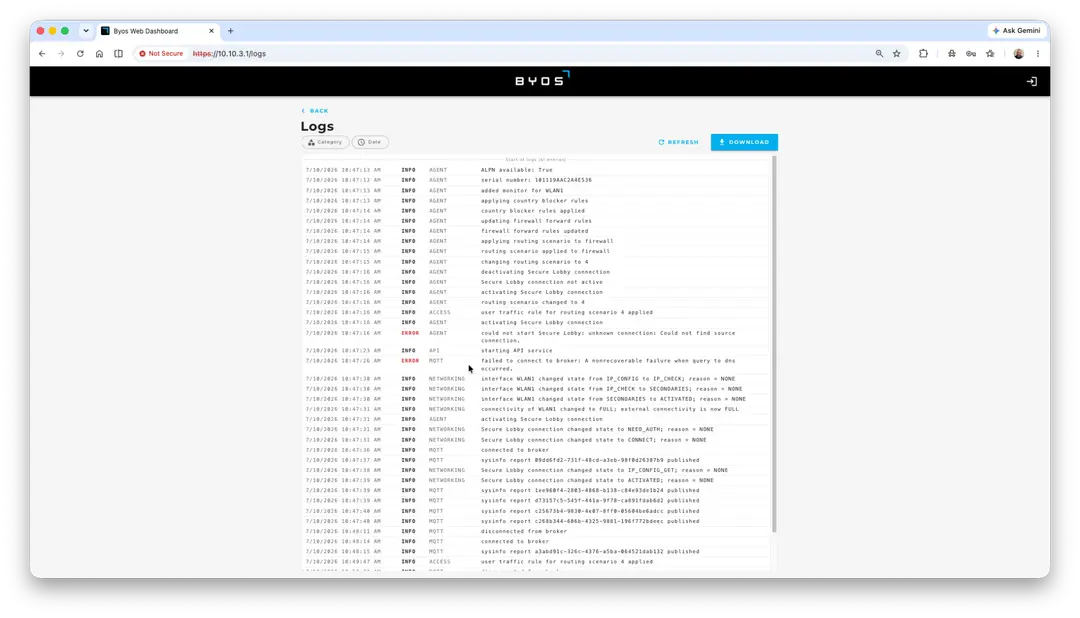
- Select the category you want to view or collect, such as Access, Agent, API, MQTT or Networking
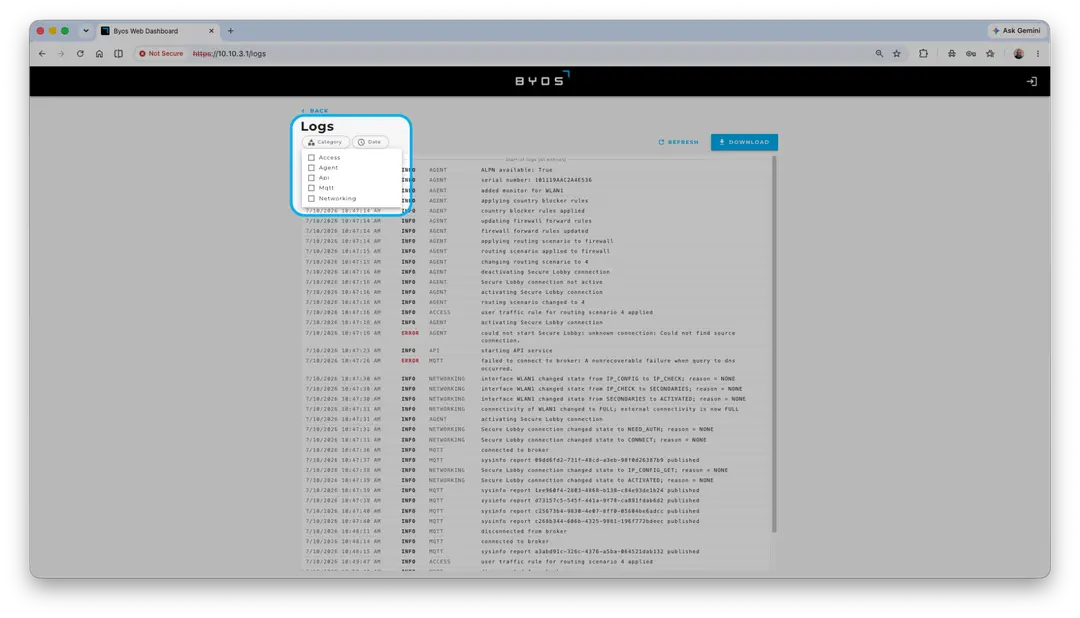
- Choose the desired date range to include in the view or export,
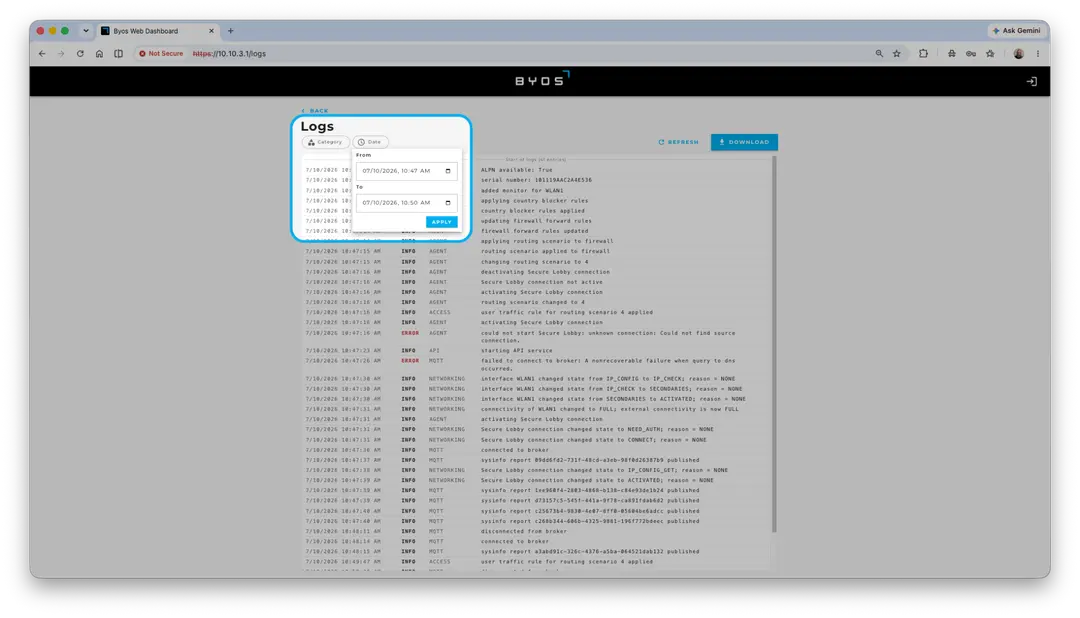
- Click Download, to generate a log bundle.
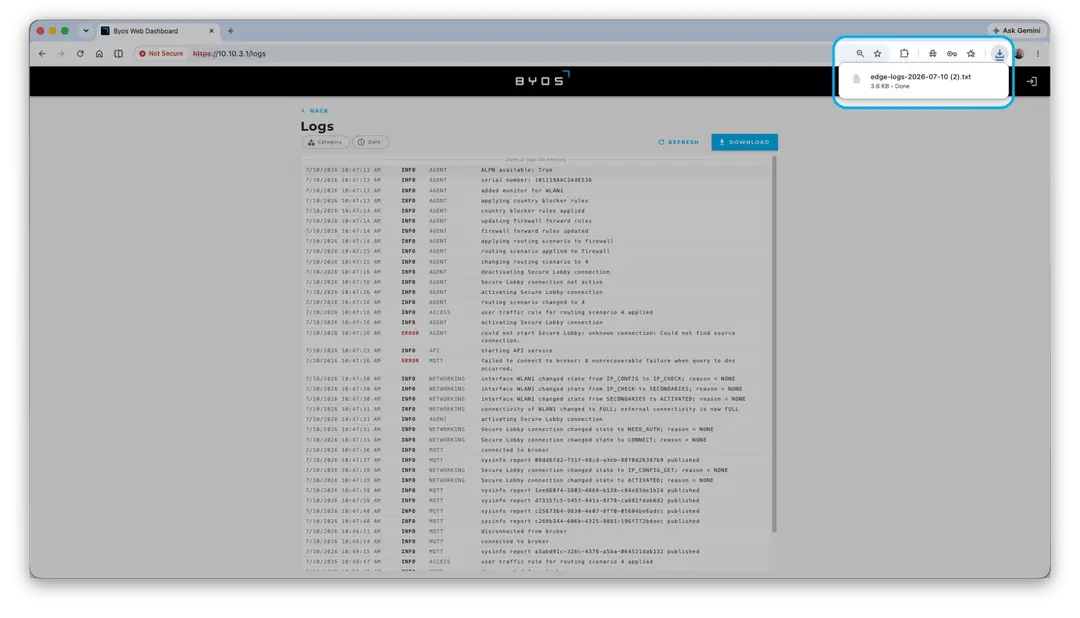
- If your browser does not have a default save location, wait for the Edge to prepare the file and confirm your browser’s download prompt to save the log file to your local workstation.
Log file format and handling
- Logs are exported as a txt file that can be shared with your security team or Byos Support if required.
- Once downloaded, it is recommended to use a common name to distinguish current logs from previous downloads.
- Store exported logs in a secure location and follow your organization’s data retention policies before sharing them externally.
When to contact support
If you cannot access the local Edge interface, the log export fails, or the log itself is empty, collect as much detail as possible about the issue (Edge model, firmware version, and a short description of the problem) and contact Byos Support through your standard support channel. When requested, attach the locally collected log file so that Support can assist with further diagnosis.