Embedded Edge Activation
How to activate my Secure Embedded Edge
Please follow the step-by-step instructions below to activate your Byos Secure Embedded Edge.
Activation connects your Edge to the Byos platform and applies your organization’s configuration.
Before You Start
Ensure that your email has been added as an Activator in the Management Console
Installation Validation
To verify installation:
- Turn off the laptop and insert the supplied USB verification key
- Power on the laptop
- Press F12 repeatedly during boot
- Select the UEFI USB Disk 2.0 option for boot
- Wait for the verification script to complete
- The laptop can then be restarted and USB stick can be removed
The verification results will appear automatically on-screen.
Choose Your Activation Method
You can activate your Secure Edge using either the Byos Edge App (recommended) or the Local Web Dashboard.
You can now activate your Edge using either:
| Method | How to Access |
| Byos Edge App | Download – available for Windows and macOS |
| Local Web Dashboard | Open a browser and go to https://192.168.61.1 |
Step 1 — Connect to the Network
Connect to your Wi-Fi network
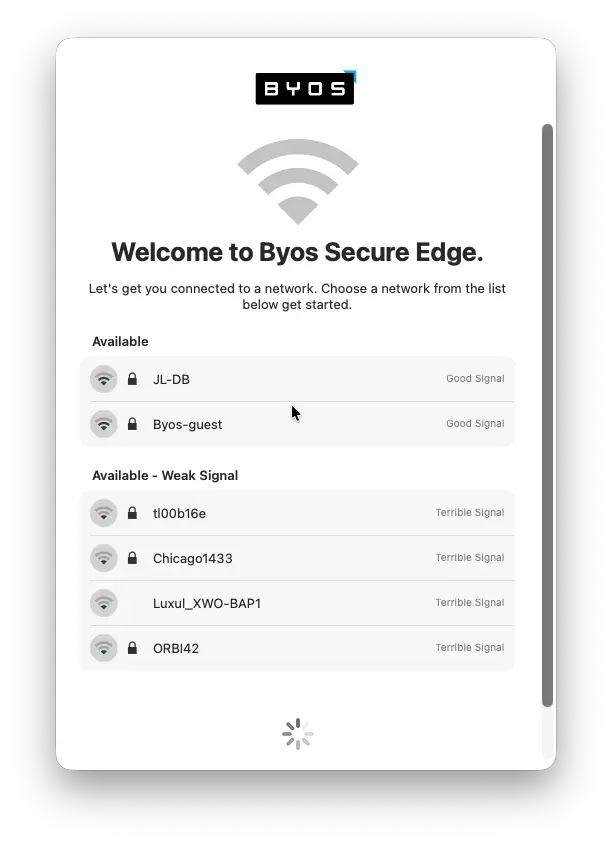
Step 2 — Wait for the Software Update
Your Edge must be running the latest software version before it can be activated.
- Current required version: v3.0.2
- As soon as the Edge connects to a network for the first time, it automatically queues an update.
- Updates are approximately 150 MB and typically take 1–10 minutes, depending on network speed.
- You can monitor update progress in the Management Console under MC > Alerts.

Important: Requesting an activation token before the update finishes will result in an "activation rejected" email. After 3 rejected attempts, your organization's Owners will be notified automatically.

Step 3 — Request Your Activation Code
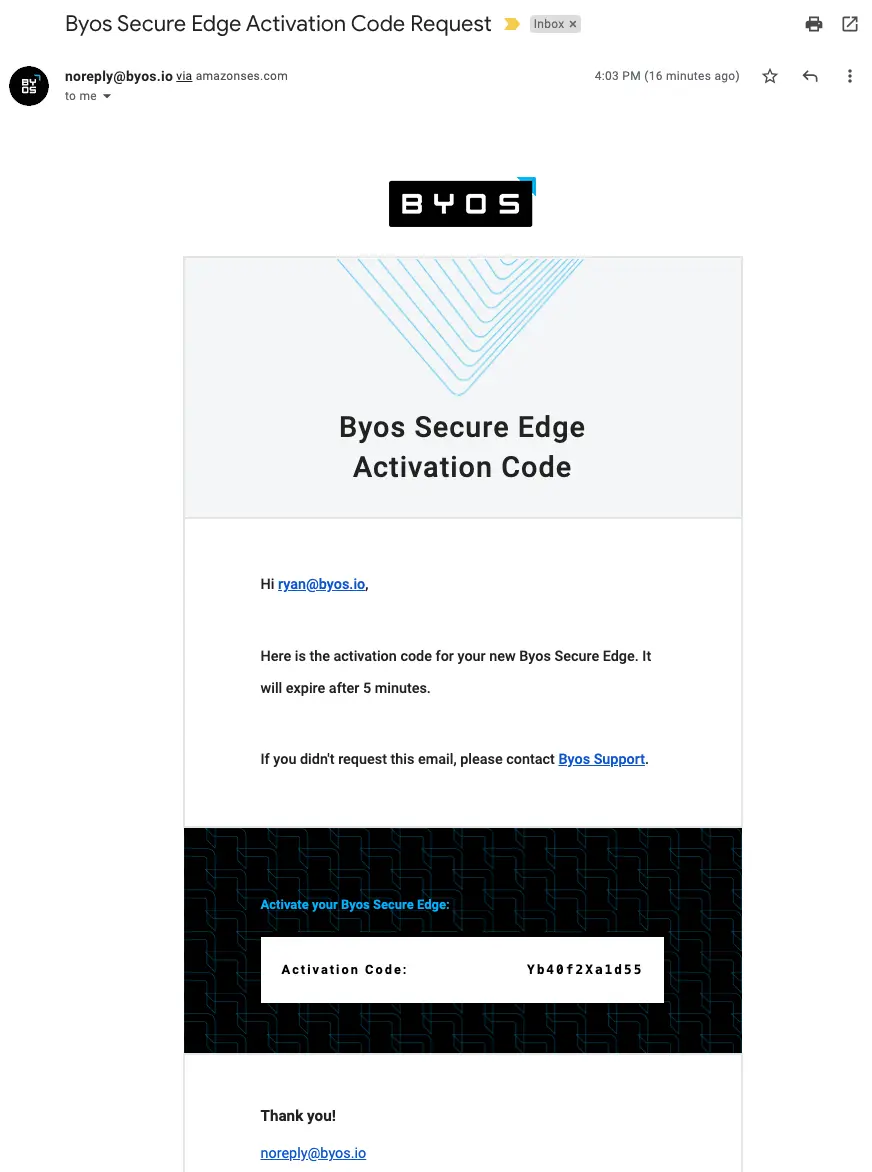
Enter your email address in the app or web dashboard. An activation code will be sent to your inbox.
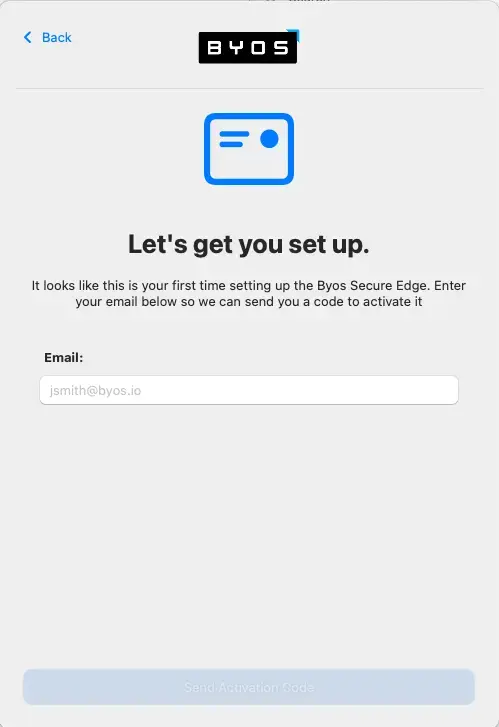
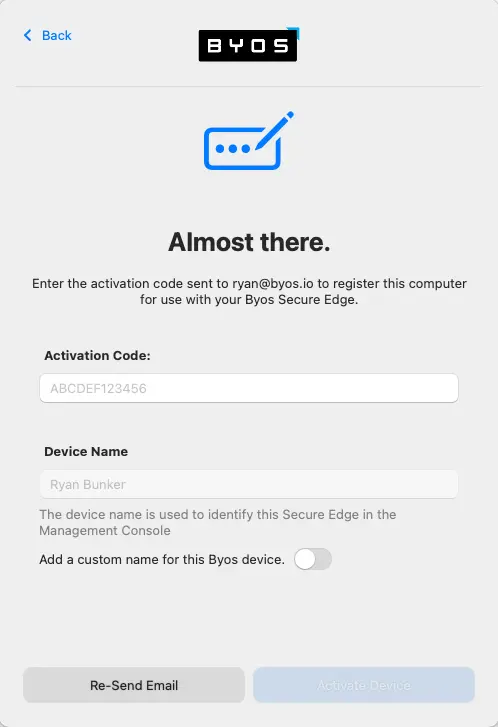
Step 4 — Enter the Activation Code
Input the code from your email to proceed with activation.
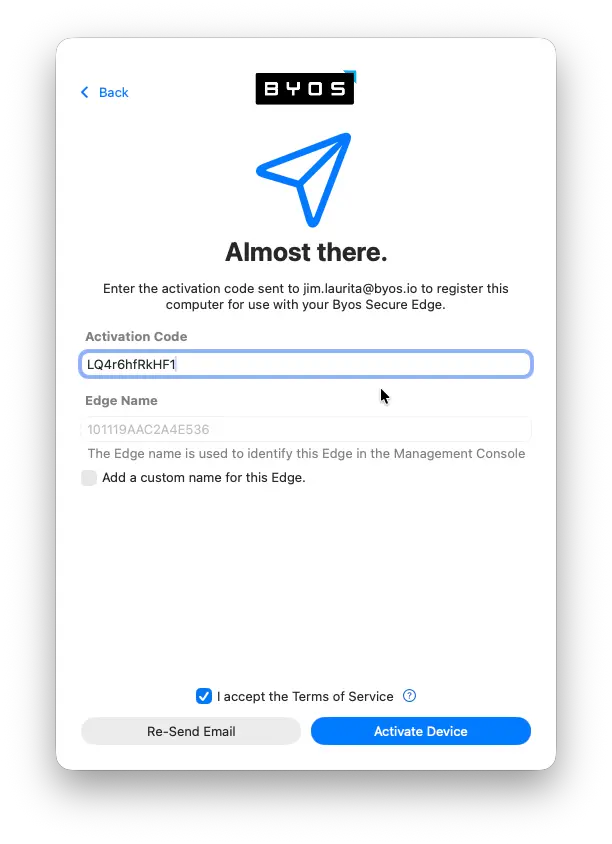
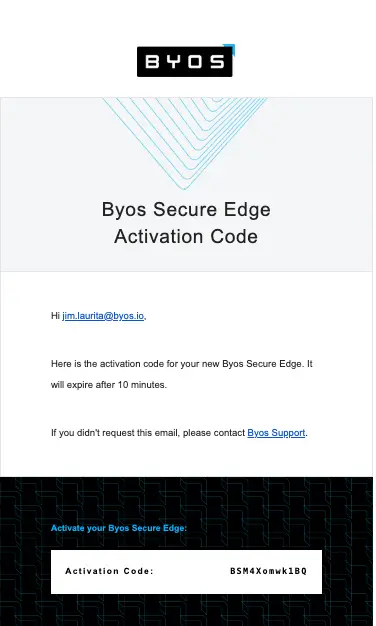
Input the Activation Code that you received in the email
Step 5 — Confirm Activation
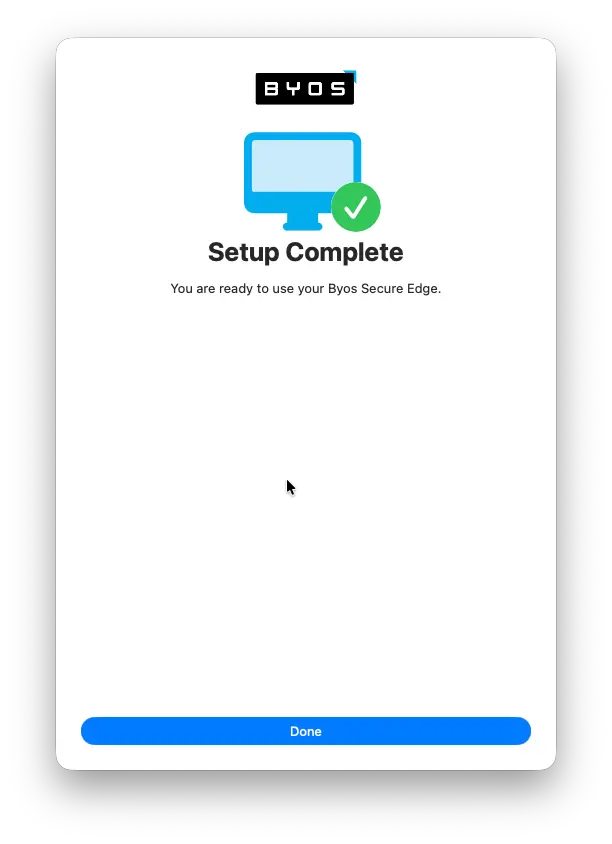
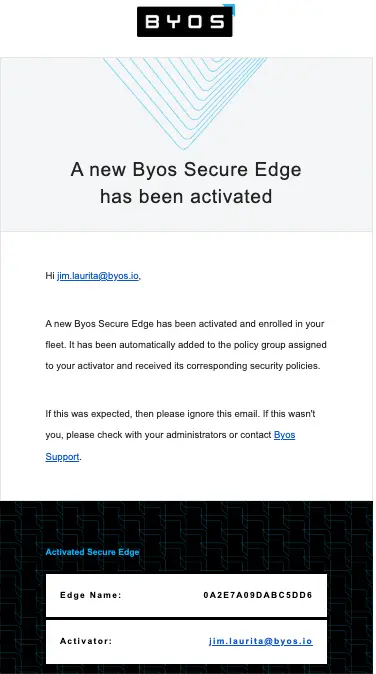
Click Done. You'll know activation was successful when:
- The app icon in your system tray shows the device as connected.
- You receive a confirmation email stating you are now licensed and active.
Step 6 — Verify in the Management Console
Your Administrator can confirm the device is online by navigating to Edges in the Byos Management Console. See Edges in the Byos Management Console for an overview.
Troubleshooting
- I submitted my email but never received an activation code.
- Contact your Administrator to confirm you've been added as an Activator in the Fleet.
- I got an error during activation.
- Double-check that you entered the activation code exactly as it appeared in the email. Codes are case-sensitive.
- I cannot access the dashboard.
- Double-check that you entered the activation code exactly as it appeared in the email. Codes are case-sensitive.
- It appears the activation process failed.
- Confirm with an administrator that your email is registered as an activator
- Check network connectivity
- Retry activation via the app
- I received a “Device not Detected” message.
- Recheck physical installation in the WWAN slot